Add Additional Users / Enable Multi-Users
Every printermon.com organization includes 1 user account by default. To bring more people in (employees, collaborators, family) you need to add seats with the Additional Users add-on. Each unit of Additional Users grants 10 extra accounts to your organization.
Step 1. Check your current usage
Features Tab
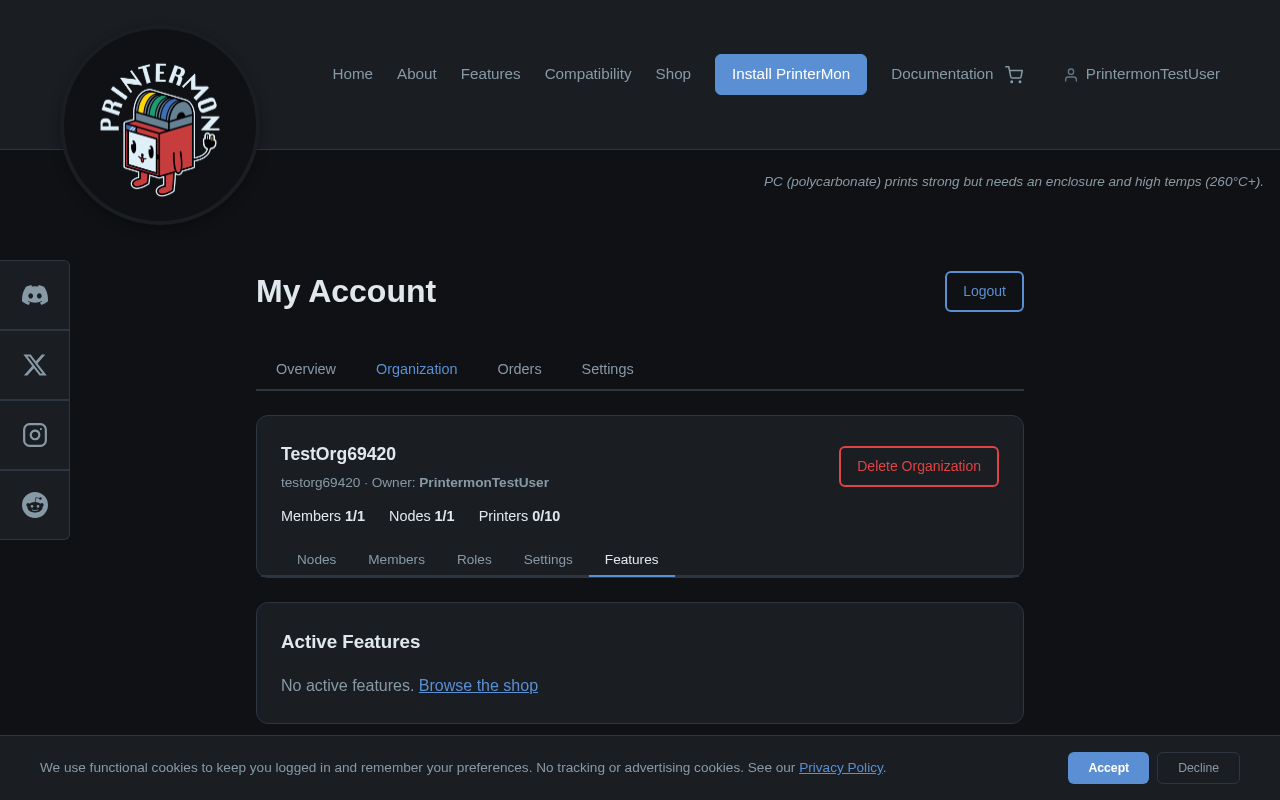
Sign in to printermon.com, open My Account, then Organization > Features. The top section lists Active Features. If you have not added any, it shows No active features.
Step 2. Find the Additional Users feature
Available Features
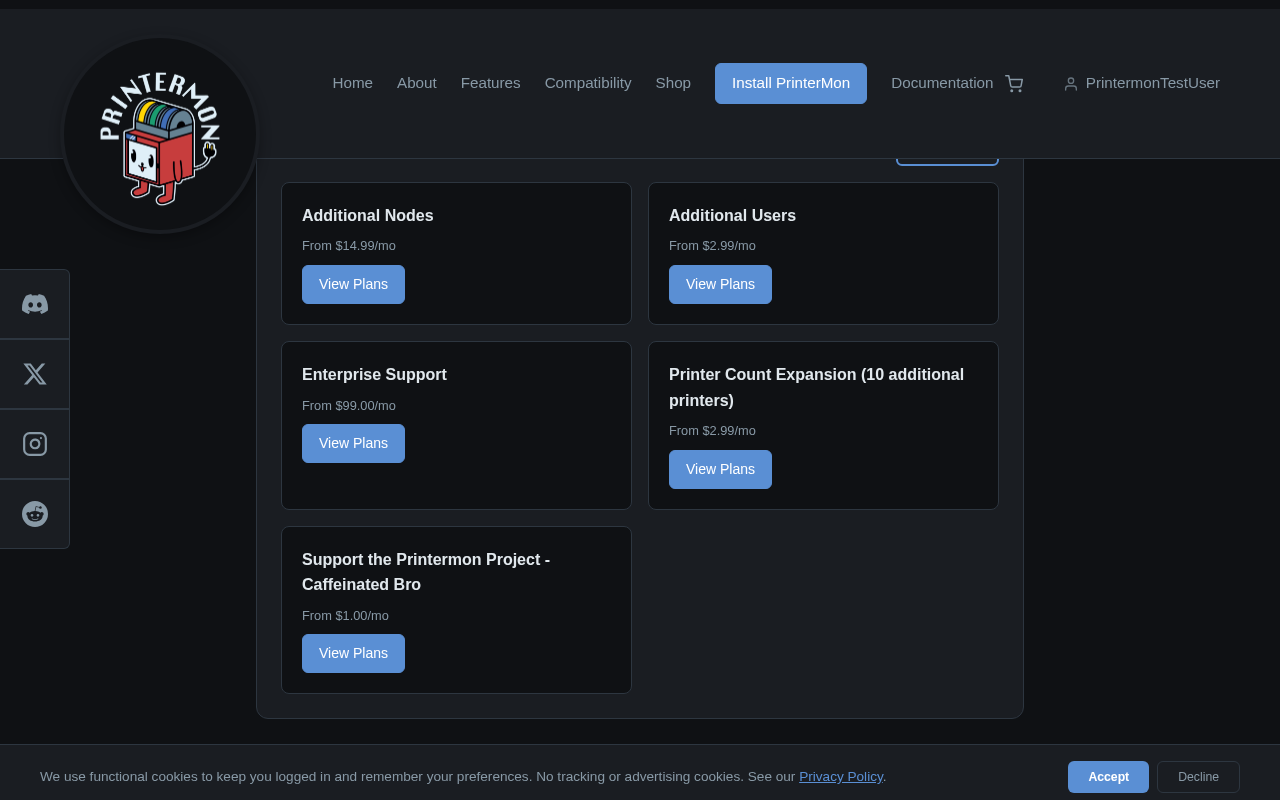
Below the active features, the Available Features grid lists every add-on. Find the Additional Users card. The price starts at $2.99 per month per unit. Click View Plans to go to the shop.
Step 3. Subscribe
Subscribe
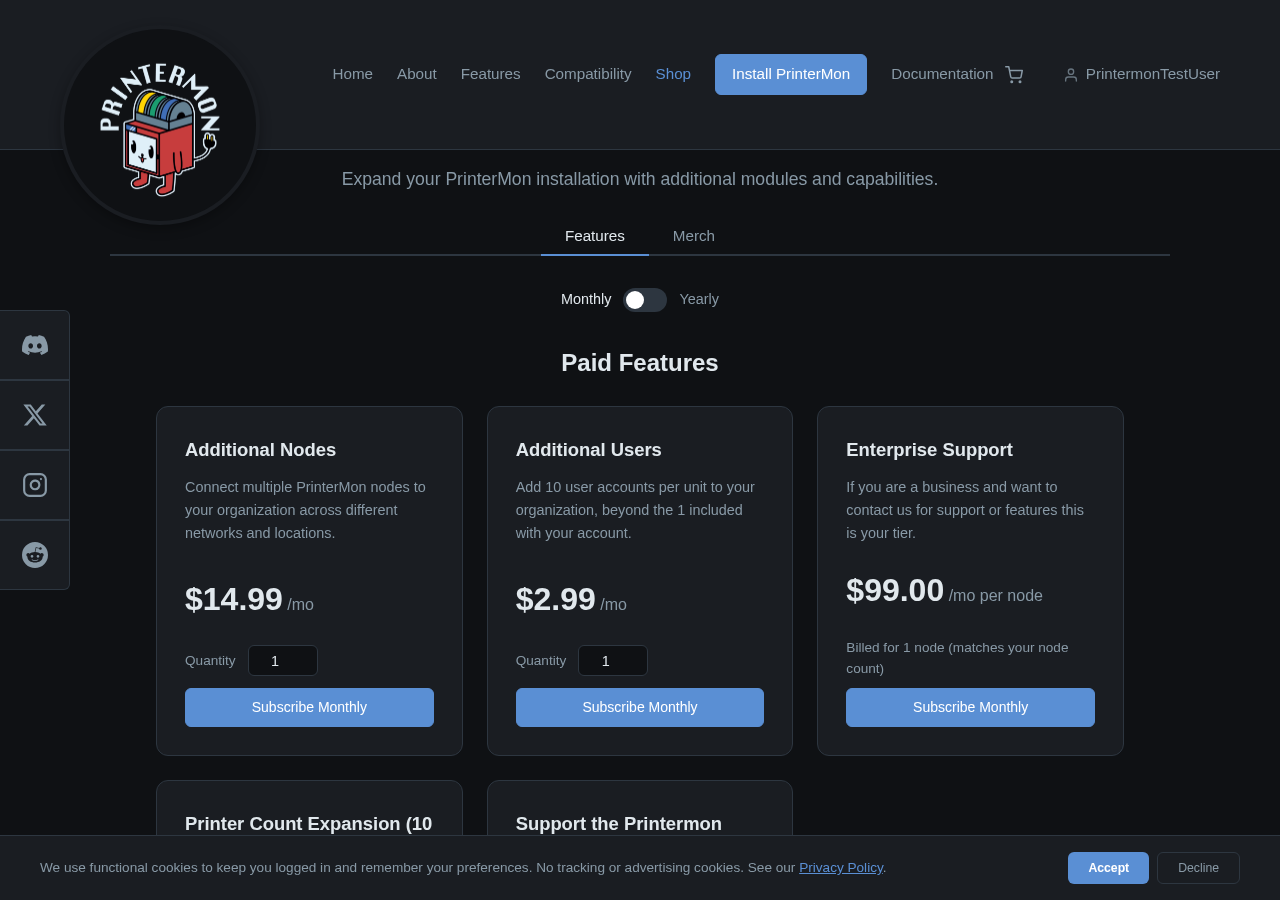
On the shop page, the Additional Users card explains the quota: 10 user accounts per unit. Pick Monthly or Yearly billing. Set the Quantity if you need more than 10 extra accounts. Click Subscribe Monthly (or Subscribe Yearly) to check out.
Step 4. Invite your team
Once payment confirms, the Additional Users feature appears under Active Features and your organization's seat count increases by 10 (or more if you bought multiple units). Now go to Organization > Members and follow Invite a User for each person.
Adjusting your plan
- Need more seats. Buy another Additional Users unit, or change the quantity in Account > Billing.
- Need fewer seats. Lower the quantity (or cancel) in Account > Billing. Existing members keep working until the renewal date; after that they exceed quota and lose access until you raise it again.
- Switching to yearly. Cancel the monthly subscription and subscribe yearly, or contact support to switch in place.